A client wants to know what you would do with $100,000 on Amazon DSP, and they want to see it Thursday. That means audiences, a budget split across the funnel, flight dates, channels, KPIs, inventory, and a deck that does not look like a spreadsheet.
Normally that is two days of work, a specialist you do not have, or an agency taking fifteen percent to do it for you. And if you have not bought DSP before, a fair amount of it is guessing about what Amazon will actually sell you at that budget.
VICTOR.AD builds the whole plan from one product link and a paste of the brief, in about fifteen minutes. It is not a chatbot and it is not a form. Every screen arrives with an answer already on it and a reason underneath, and you keep it or you change it. Nothing reaches Amazon unless you send it there yourself.
This page walks the whole thing, screen by screen, and explains why each suggestion is what it is, so you can defend the plan in the room without VICTOR.AD open in front of you.
Chapter 1
The brief
Three questions: what you are advertising, what the brand is called, and what you want. Everything the tool suggests across the next nine screens is built out of these three answers, so this is the part to slow down on.
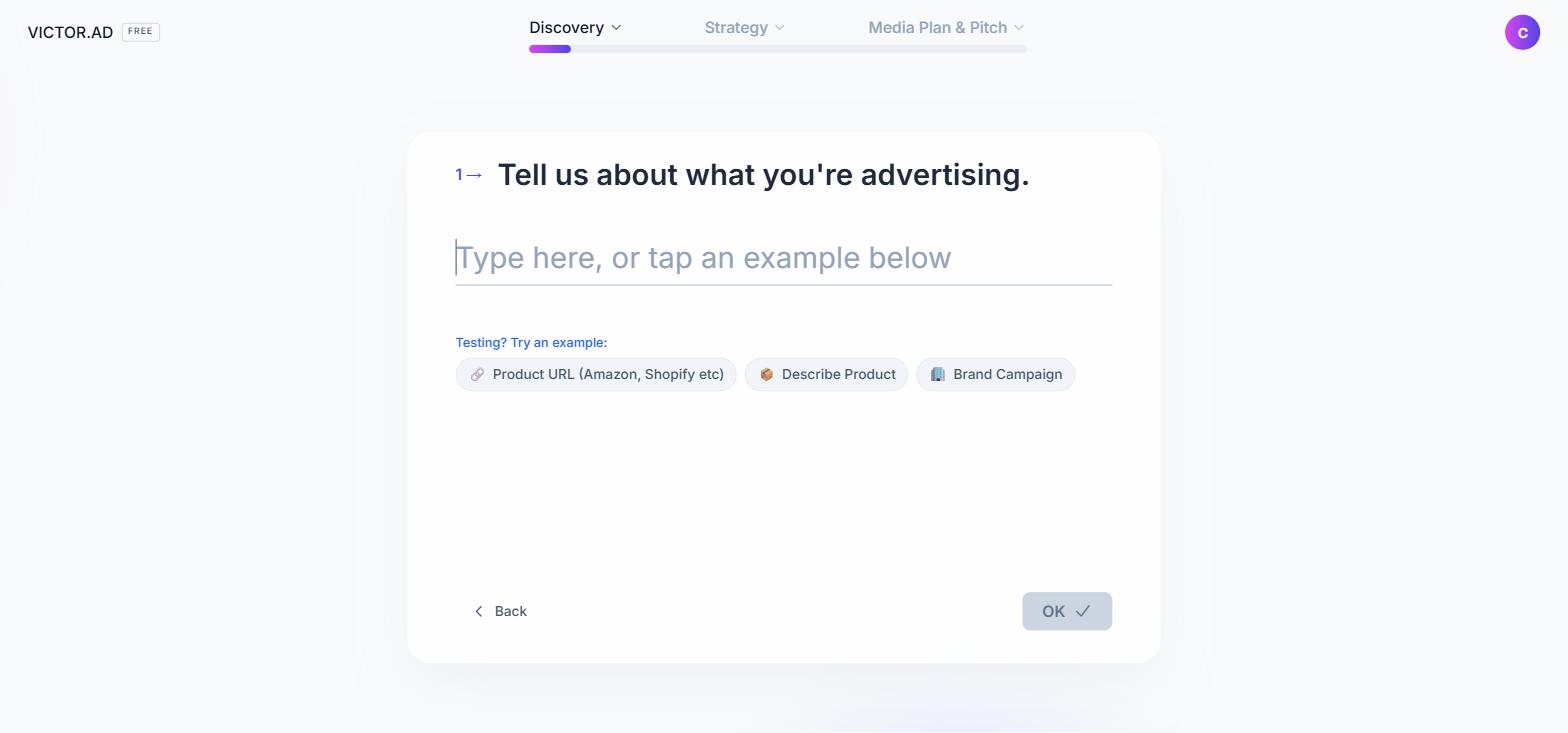
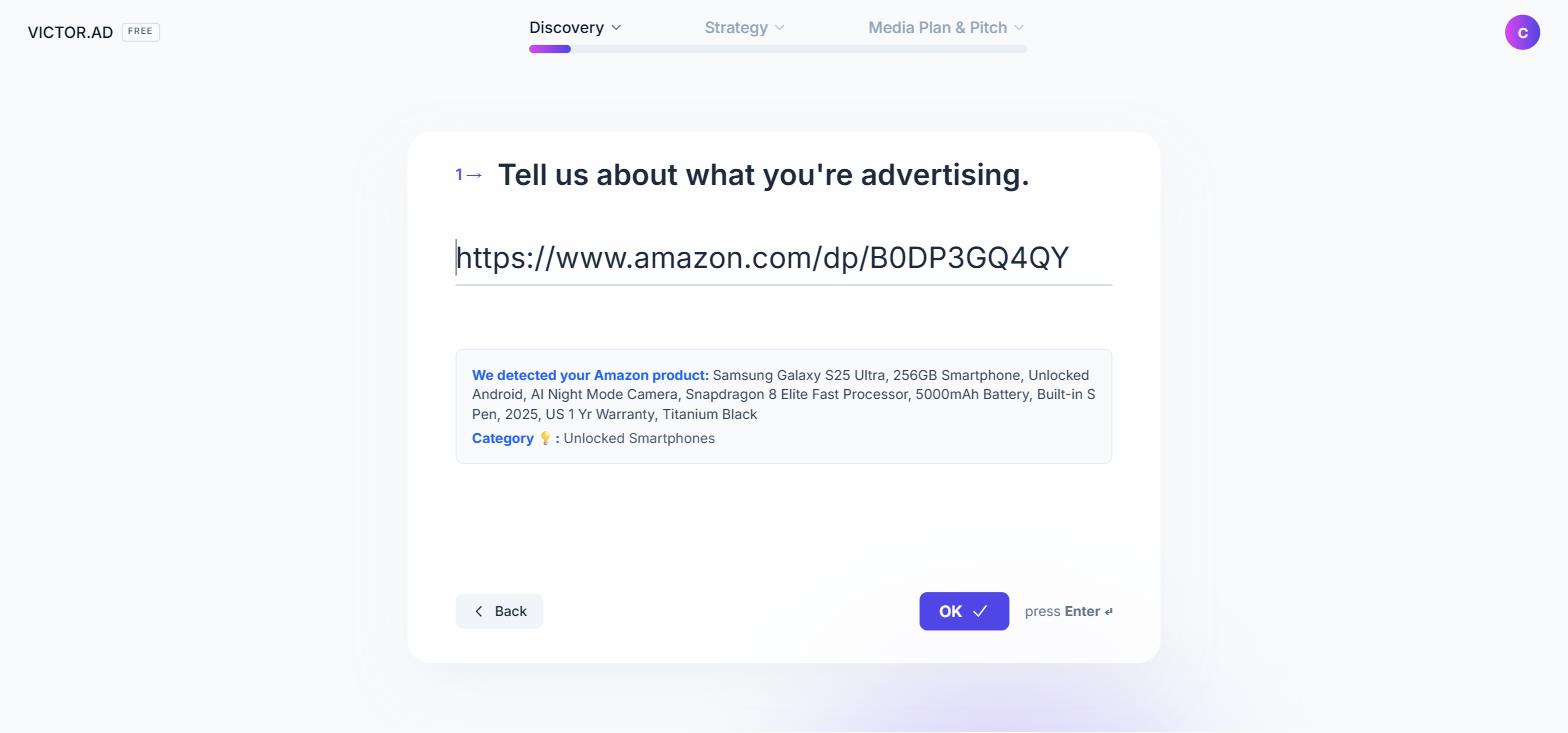
Paste an Amazon link, an ASIN, any product page, or just describe the product in a sentence, then click OK. The tool reads the page, which takes up to a minute.
An Amazon link is the strongest thing you can give it, because real product data comes back: brand, price, images, category. A brand page or a Shopify URL gets fetched and read. Plain text gets read on its own. All three work. They just give the tool different amounts to work with.
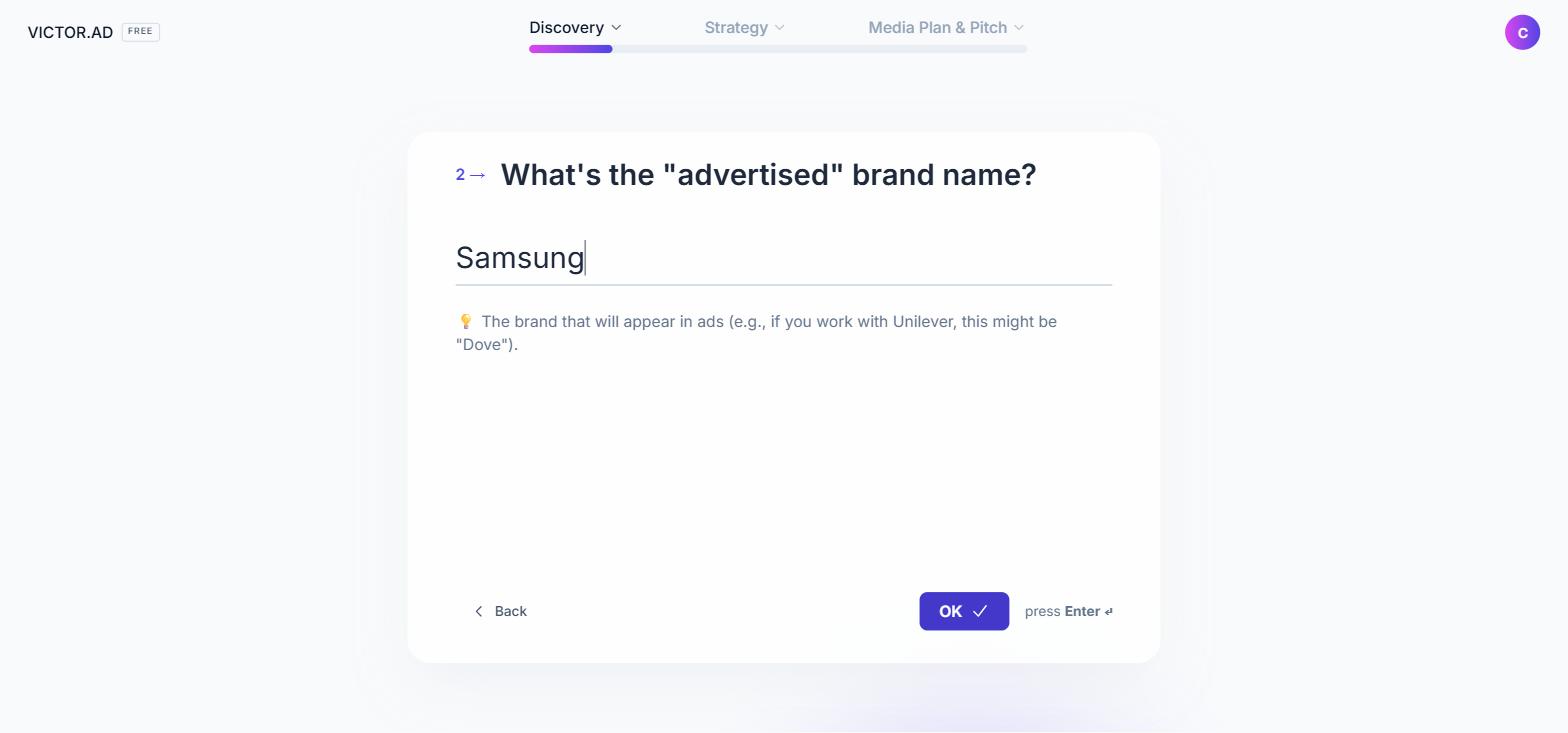
Step two is the brand the shopper will see. If you work with Unilever, this might be Dove. It arrives filled in when the tool was confident and empty when it was not, on purpose, rather than guessing.
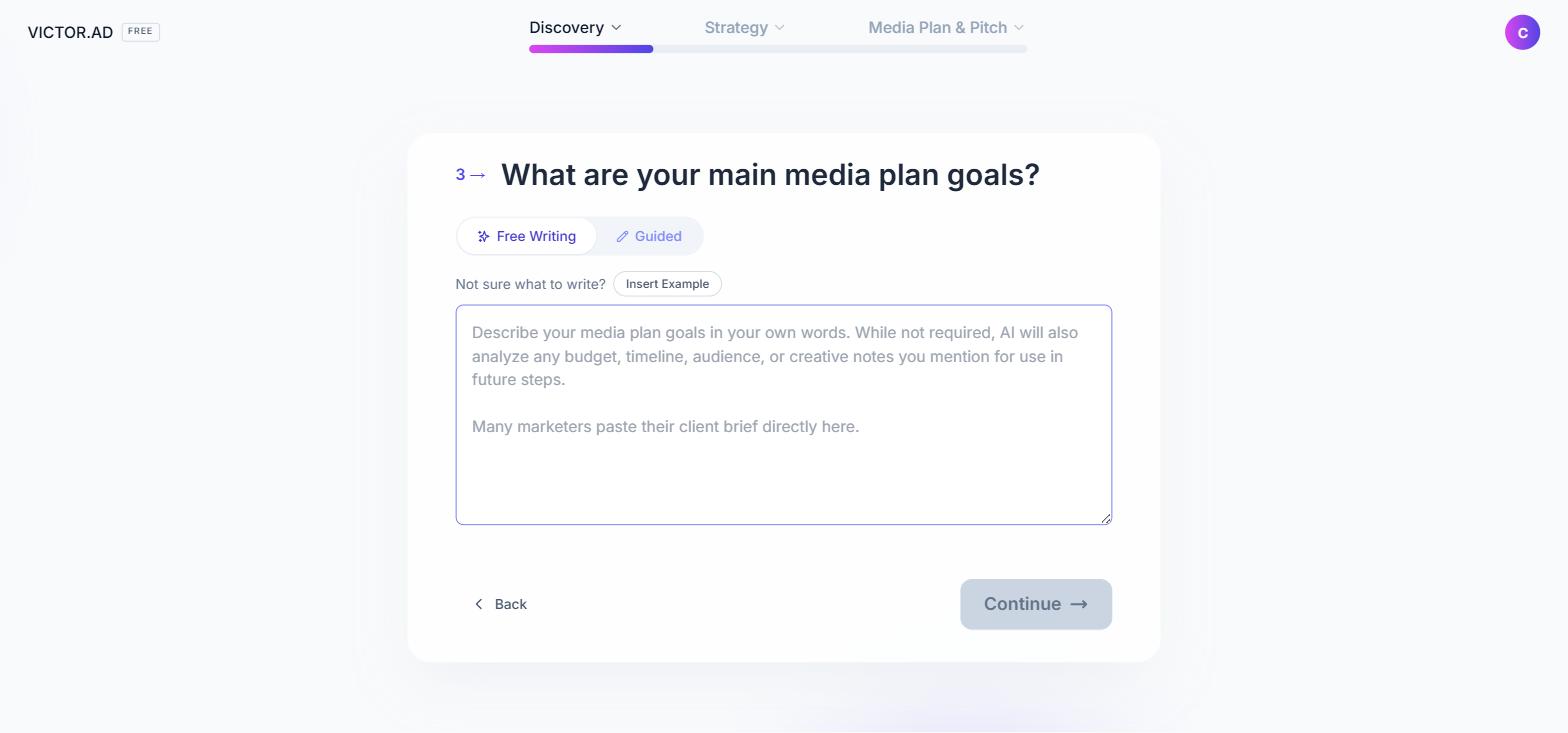
Step three is the box that does the work. Write the goals in your own words, or paste the client brief in whole, which is what most people end up doing. Guided mode gives you the four funnel stages as separate cards instead, if you would rather work that way.
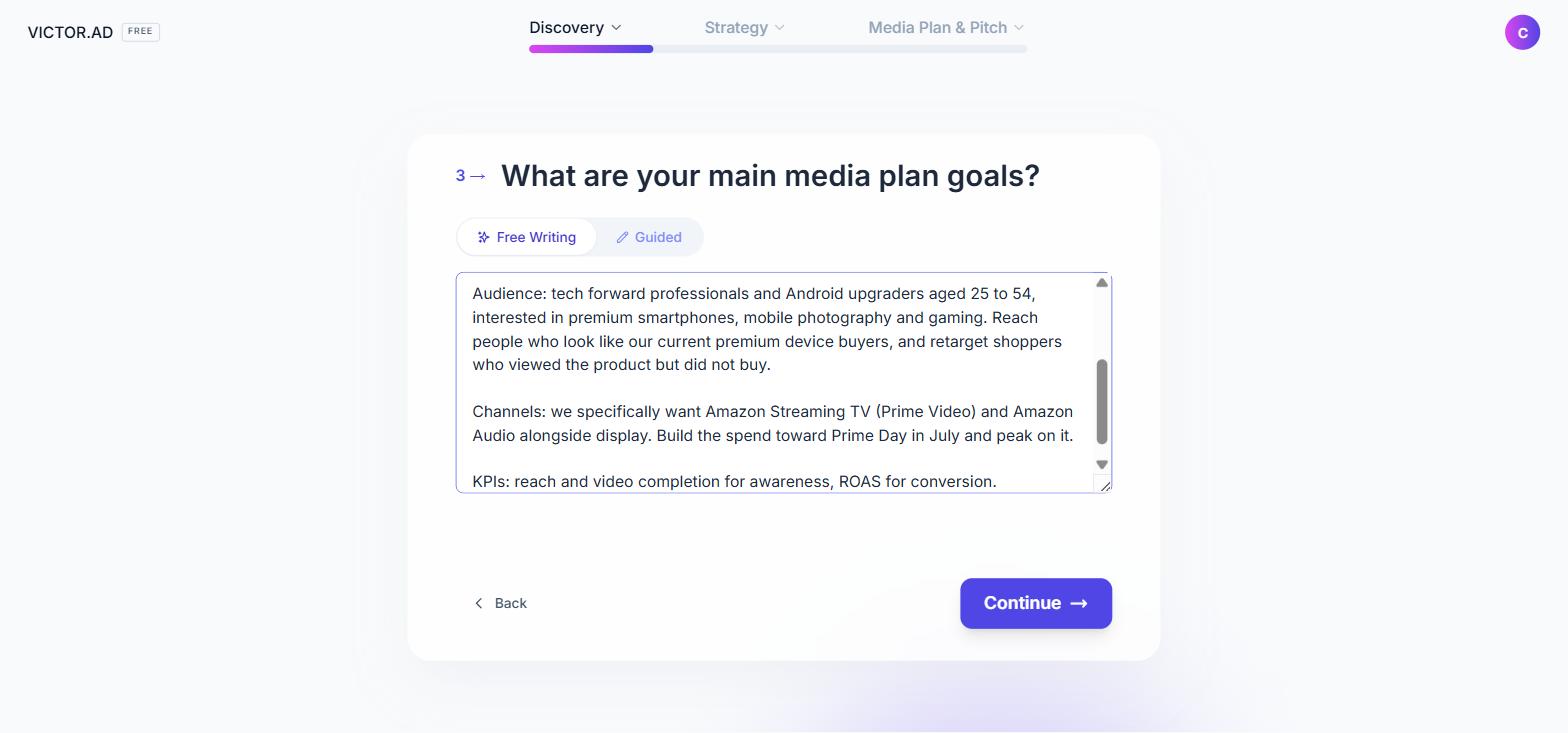
This is the strongest thing the tool does, so it is worth watching what one brief sets off. From these few lines it pulls the budget and the dates, including the retail event named in the brief. It picks up the platforms the client asked for. The moment you press Continue, an audience search agent starts matching the brief against Amazon's segments. And the budget split the client asked for is carried through to the allocation screen later.
So it reads money, dates, named events, platforms, percentages, and which funnel stages you meant. Type one line here and you spend ten minutes fixing the plan later. Whatever you know about this client, put it in this box.
Chapter 2
The frame
Country, budget, dates and ad formats are the boundaries the rest of the plan lives inside. All four arrive with an answer already on them for you to review.
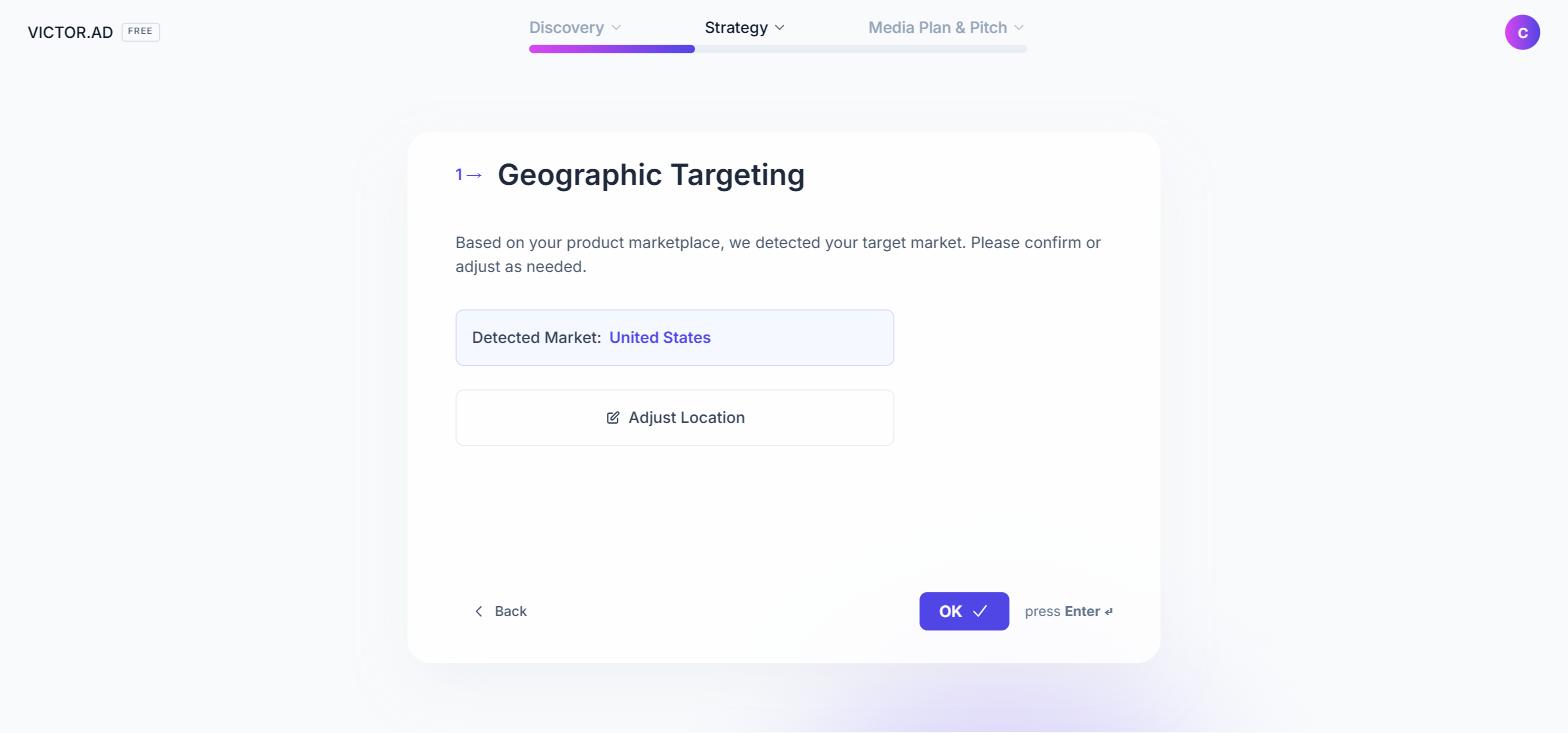
Country comes from the product's marketplace, one country per plan rather than several. If you need to go narrower, there are cities, regions and postcodes for the US behind Adjust Location. Change the country here or later and the tool recalculates the budget and the currency, and any format Amazon does not support in that market drops off the list.
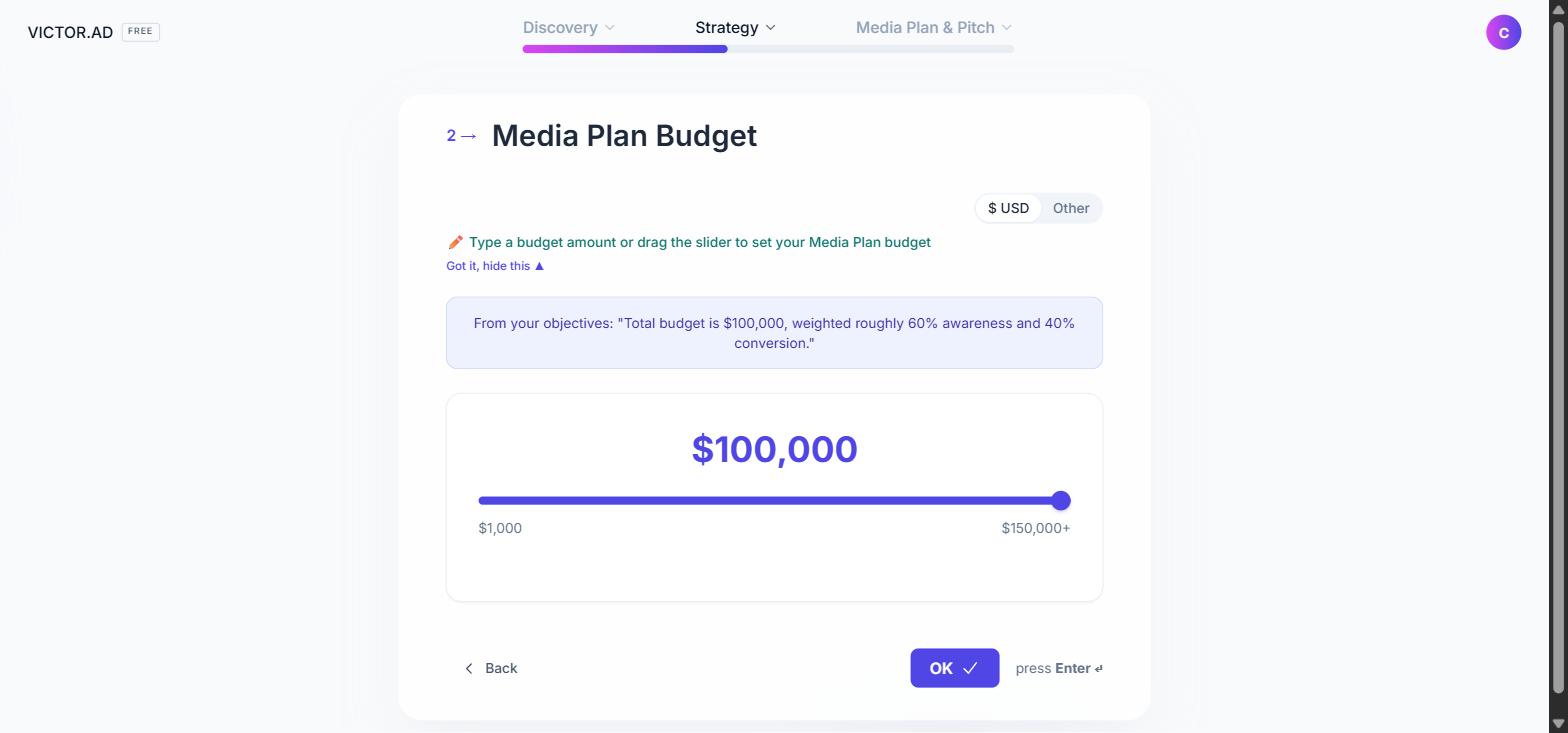
The budget always tells you where it came from. In this plan it was read straight out of the brief. If no budget is mentioned, the tool proposes one from the goals and the product type, and the reasoning underneath explains the suggestion either way.
Budget also shapes which formats the tool suggests, and that is deliberate. Every format has a level below which it cannot deliver properly, so the tool follows the delivery thresholds buyers use as best practice: Video and Streaming TV only appear once the budget clears them. You can override that later, but the default keeps you from putting a format on the plan that will not spend well.
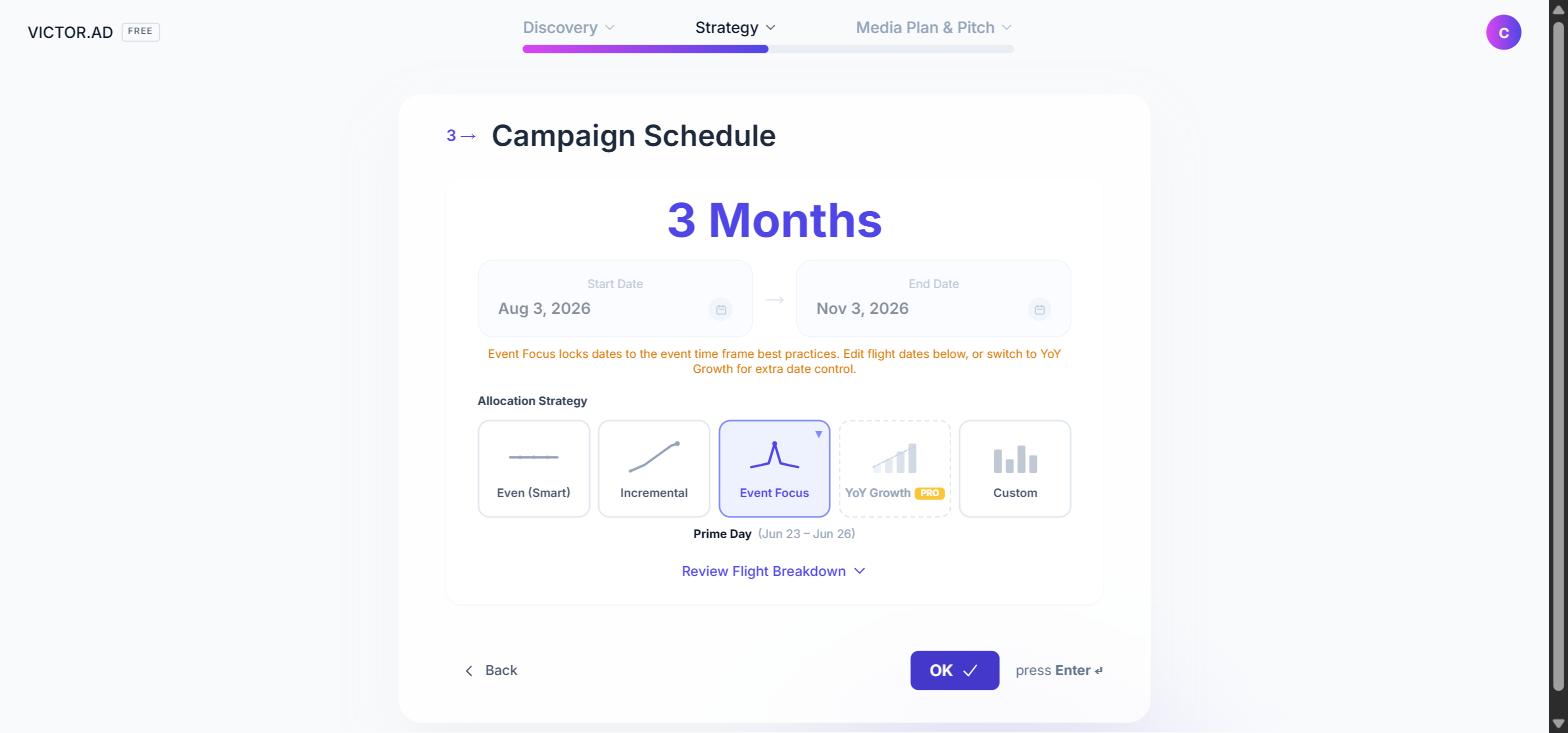
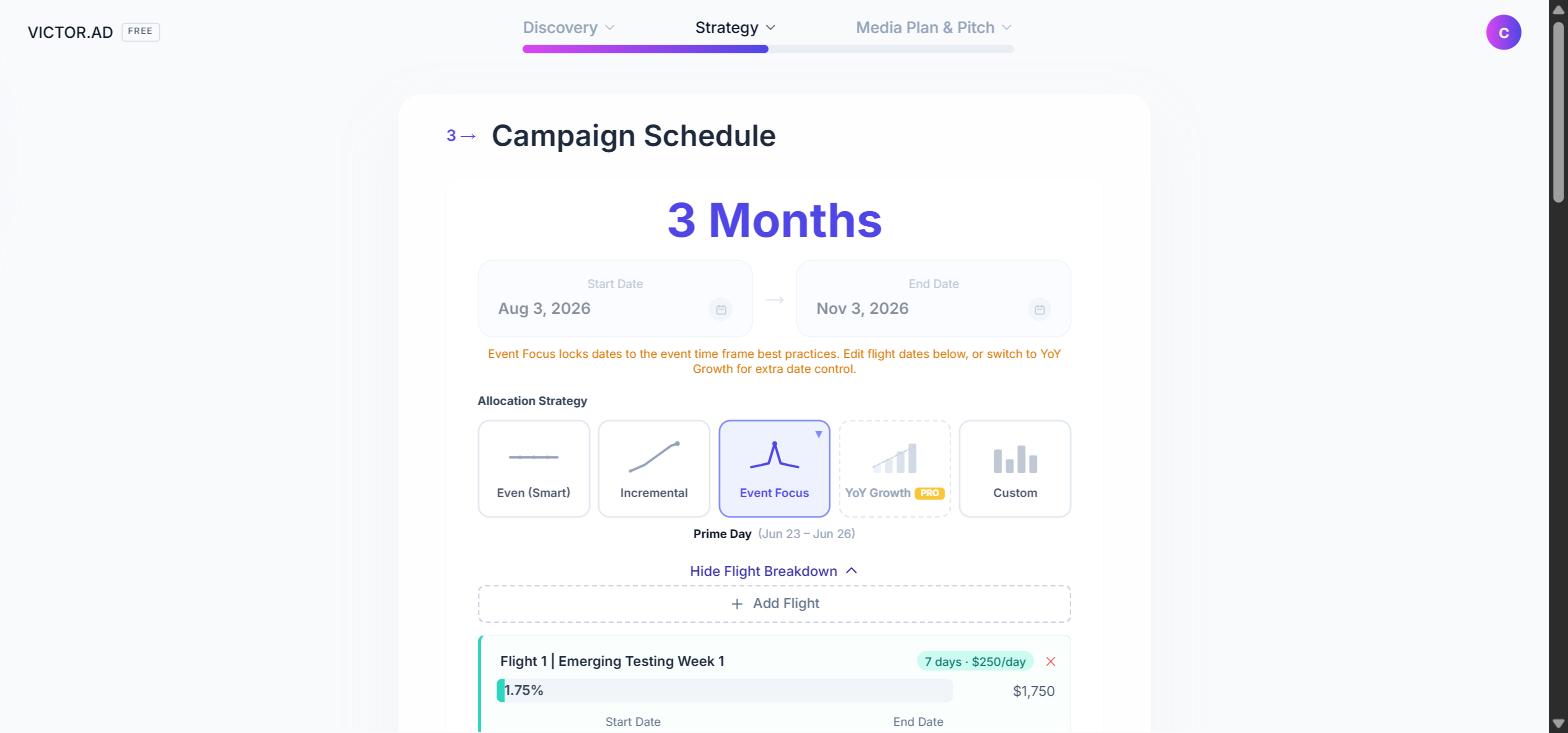
If no dates come out of the brief, the run starts two weeks out. The real decision on this screen sits underneath the dates: how the money is spread across the run.
- Even spend puts the same amount in every period. It is the default, and it is the right answer when you have no reason to favour one period over another.
- Incremental starts small and builds, which suits a launch. You spend less while the campaign and the product are still finding what works, and more once they have.
- Event Focus builds toward a retail moment and peaks on it. Picking the event fills in the dates for you, which is why the brief naming Prime Day set this one automatically.
- Year on year growth puts more into the periods that performed last time.
- Custom lets you set the flights yourself.
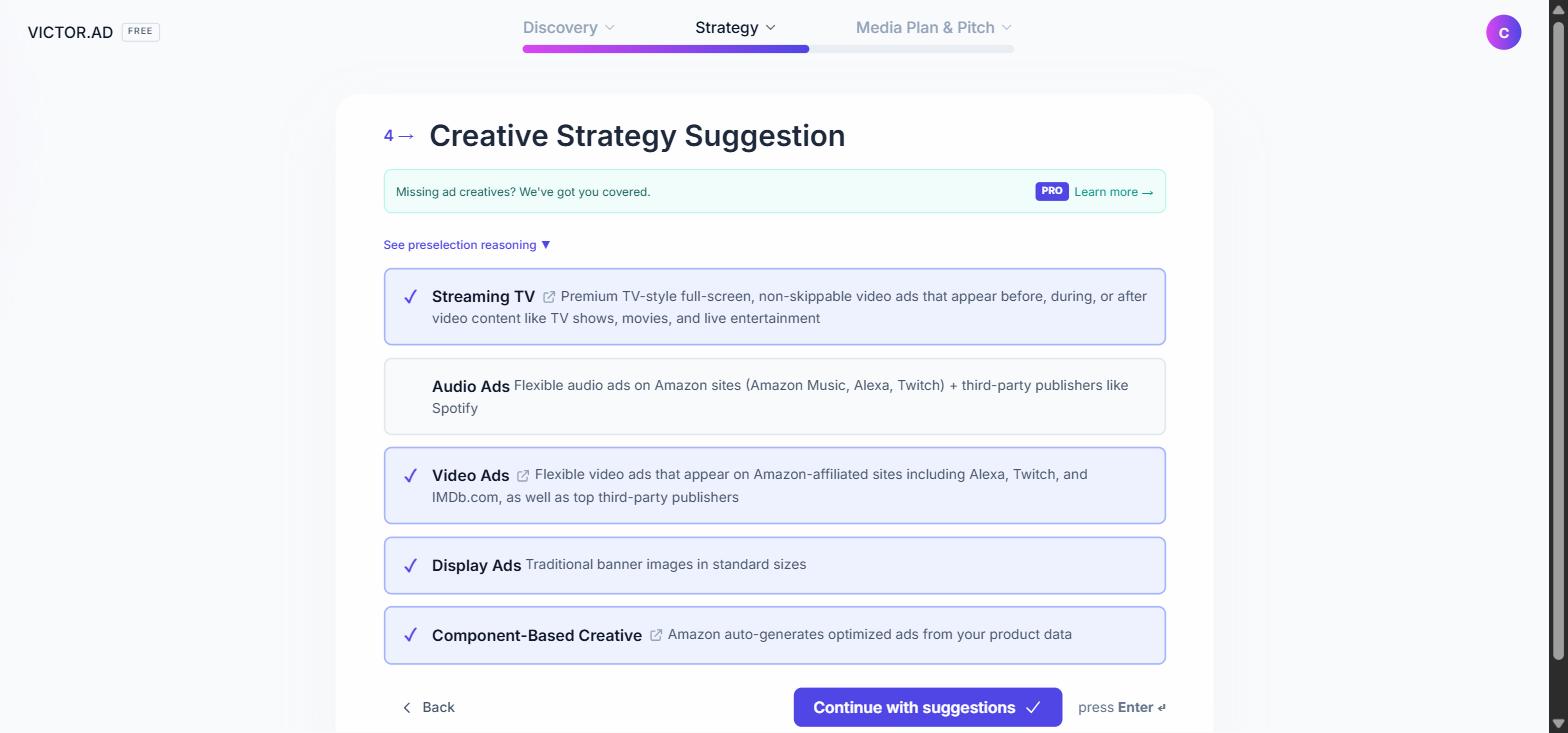
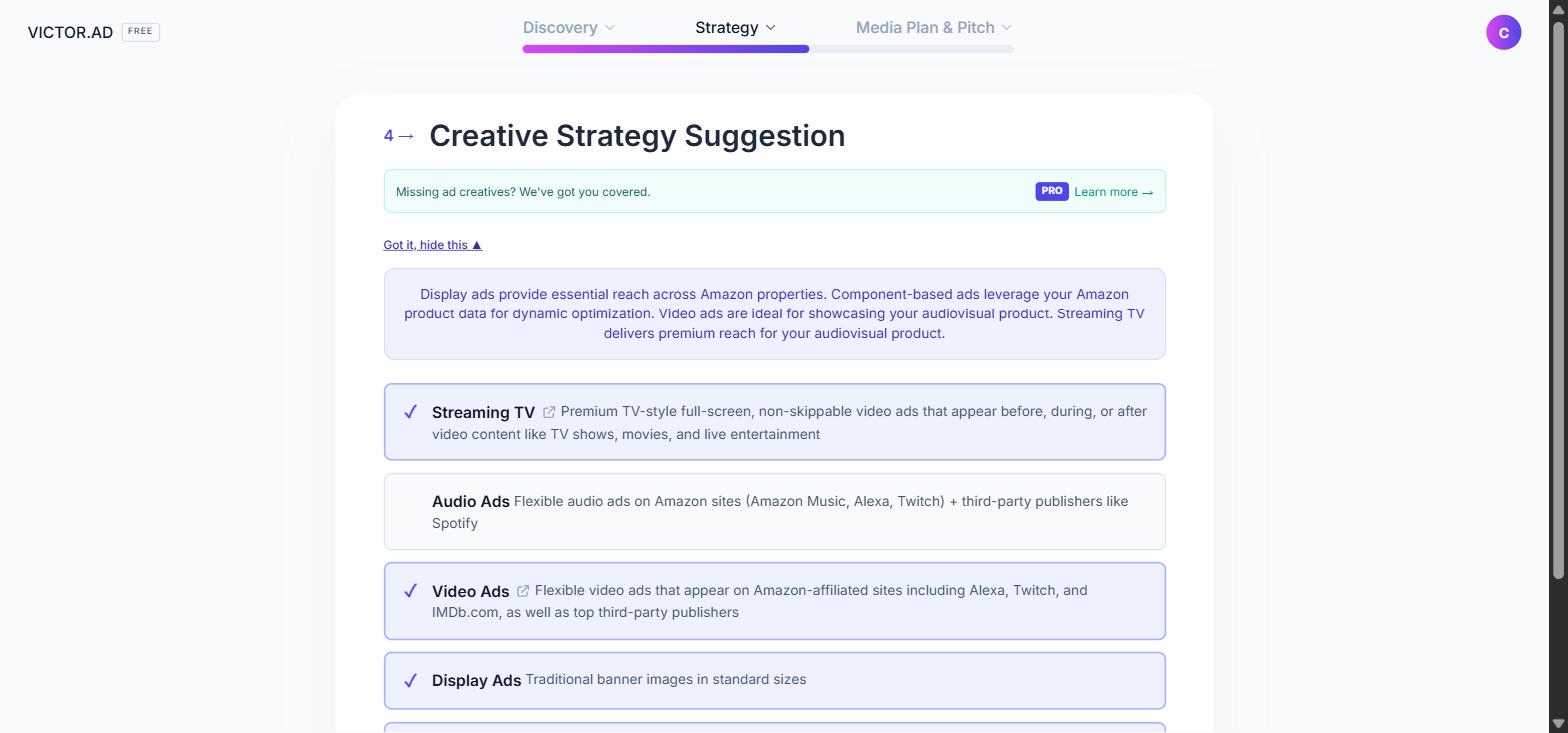
That leaves the ad formats. The selection comes from the budget, the goals and the product, with any platform named in the brief overriding the budget threshold. Display is almost always on, and Video, Streaming TV and Audio come in once the budget supports them.
Chapter 3
The targeting
Three decisions left: who sees the ads, what each part of the budget buys, and where it runs. This is the part that shows the tool is reasoning rather than filling in a template.
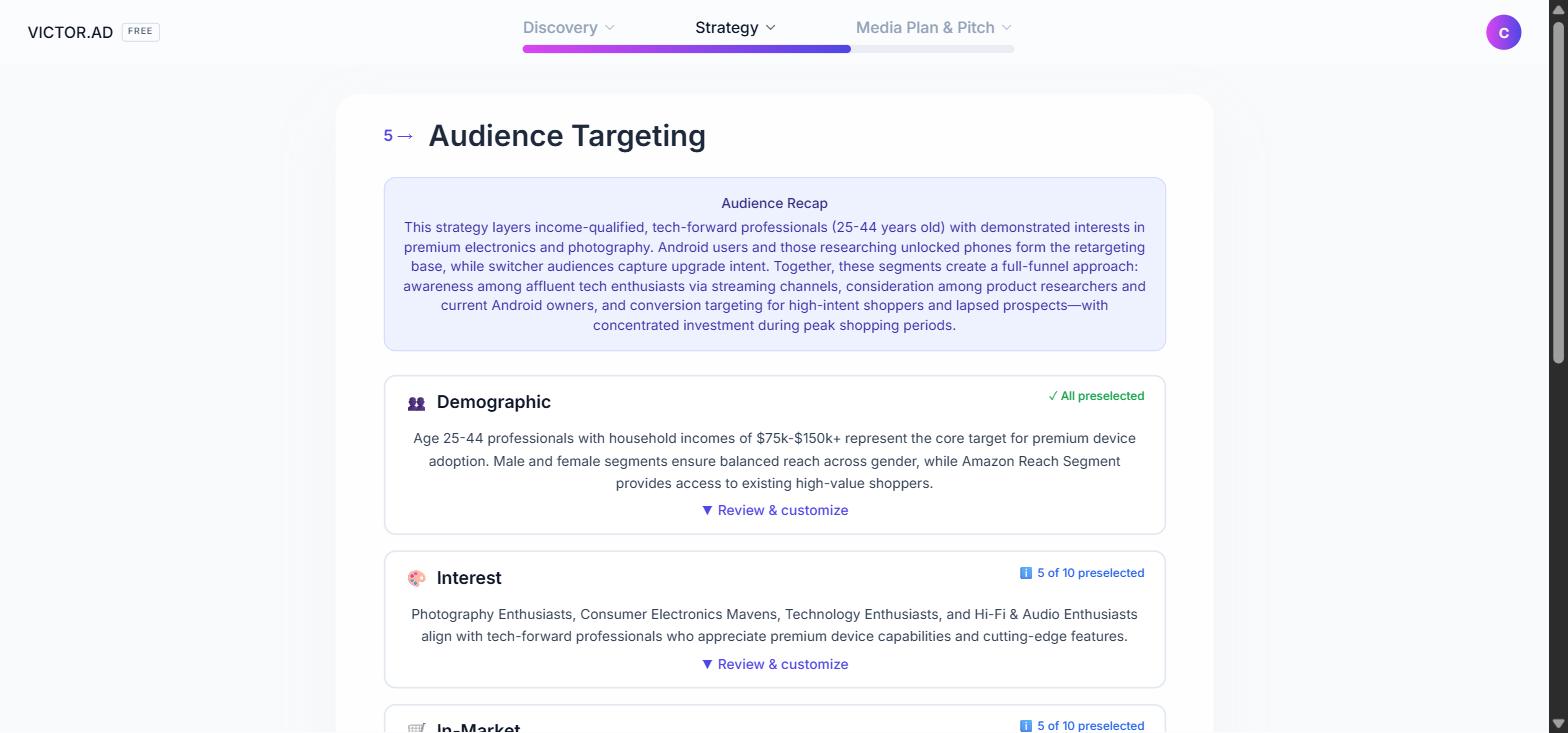
The audiences are already suggested, grouped by category, each one telling you how many it picked and why. What it does here is match your words to Amazon's. You described the product and who you want to reach. Amazon has already sorted shoppers into thousands of segments in its own language. The tool lines your description up against those and picks the ones that fit.
What it does not know is your client. You do. So treat this as a shortlist. Open Review and customize and everything it rejected is sitting underneath, unticked, one click from going back in. Put back what belongs, take out what does not.
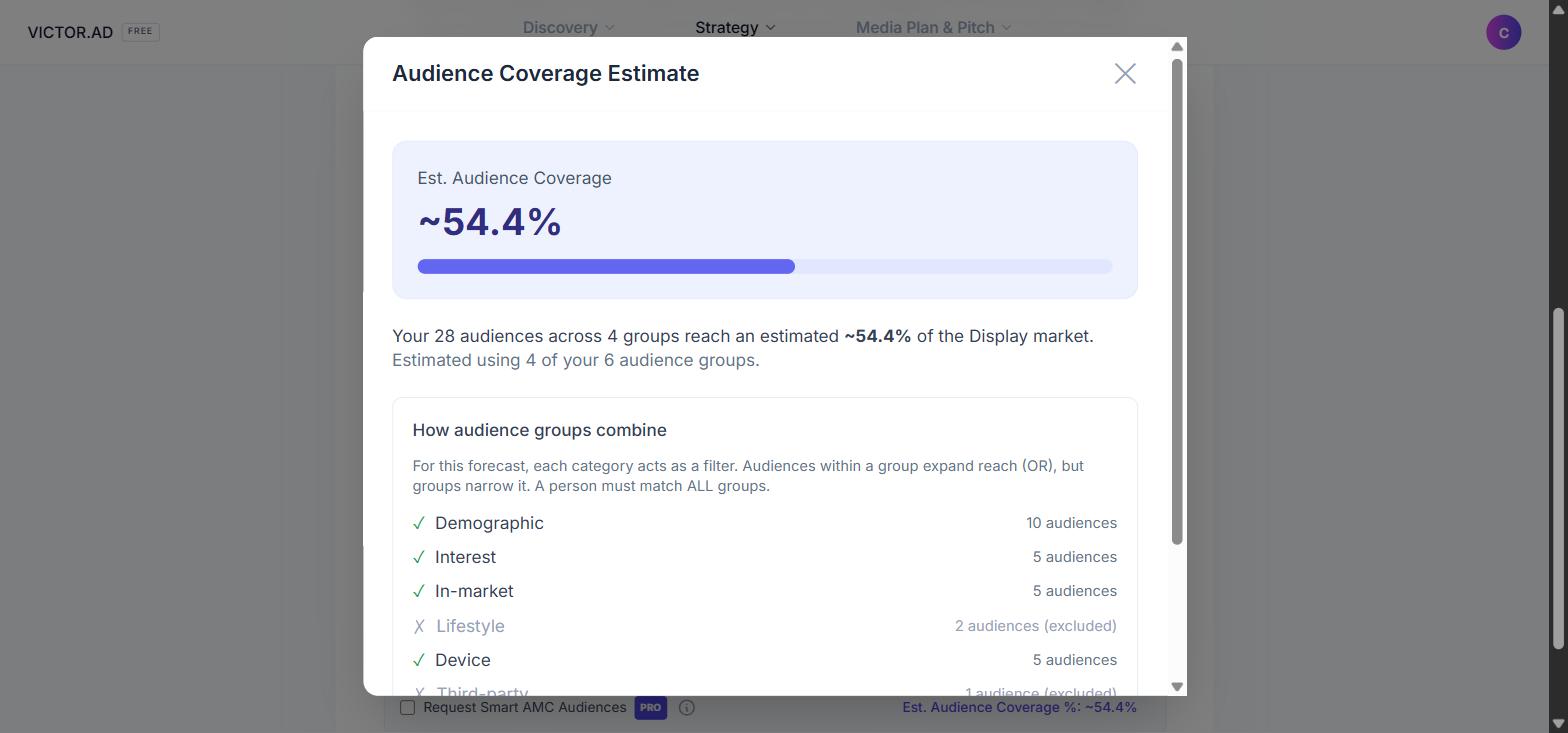
The one most people get wrong
Watch the coverage number when you edit the audiences. Adding more audiences inside the same group widens your reach. Adding another category narrows it, because a person now has to match every category at once. So when a client asks you to reach more people, you remove a group like third party or in market. You do not add one.
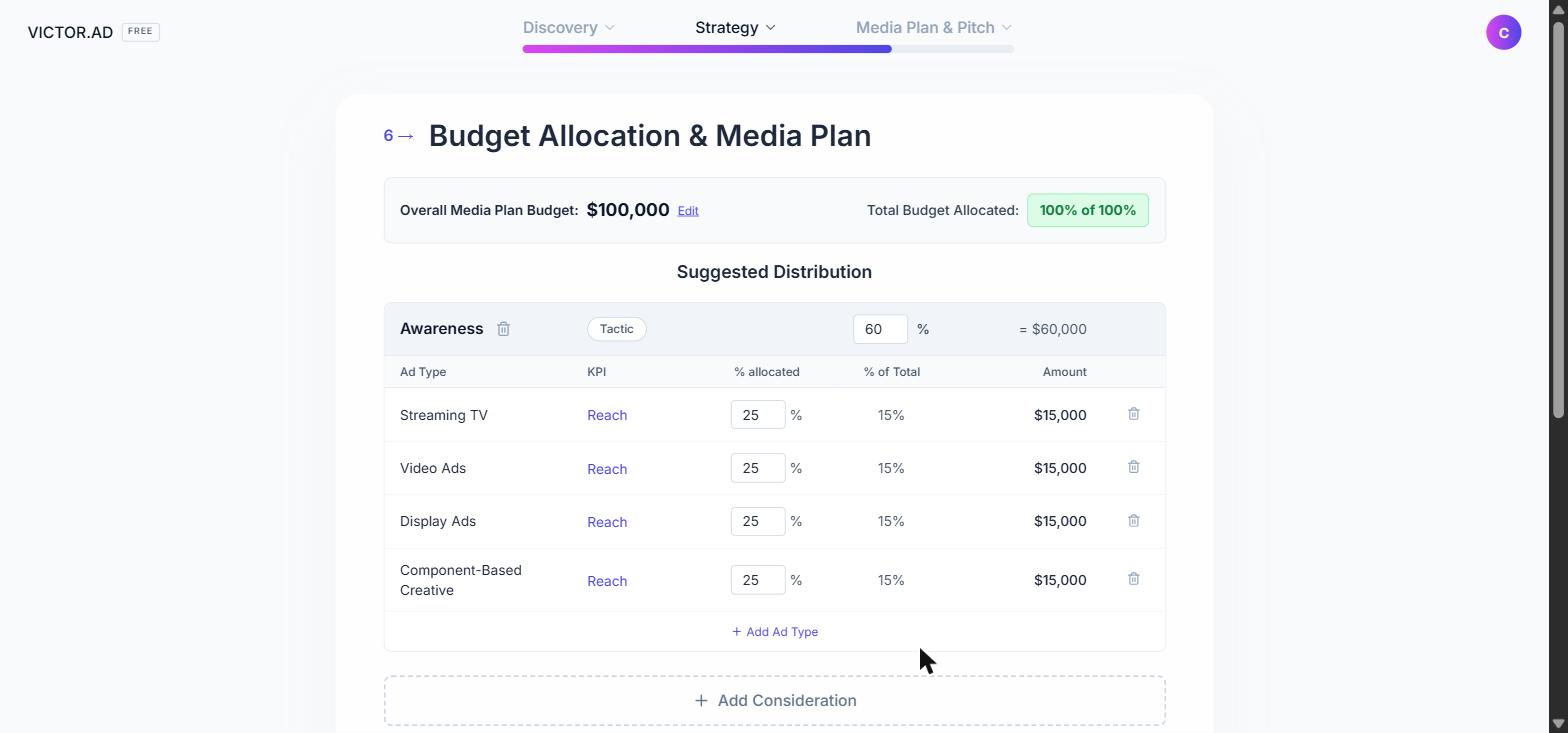
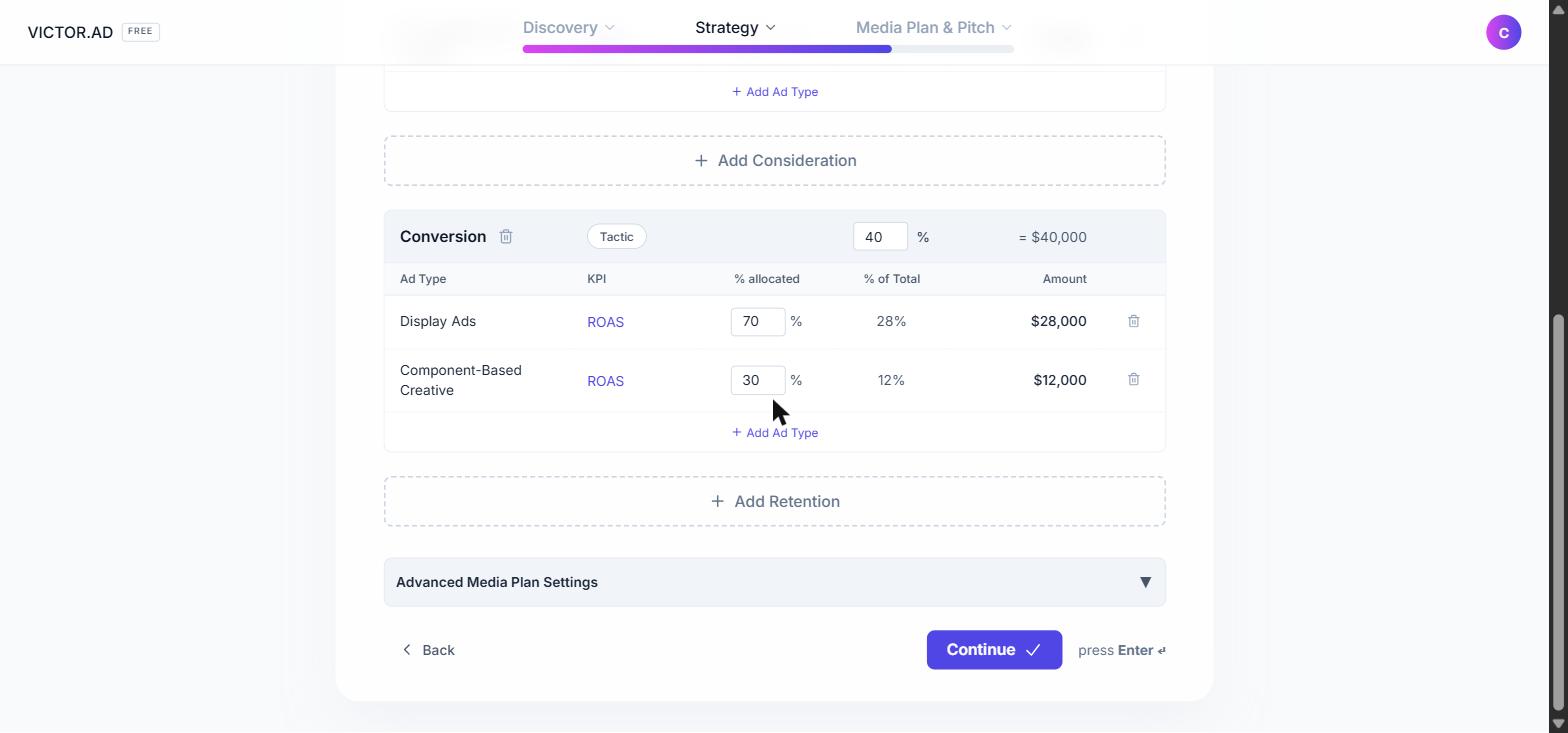
Now the money. One card per goal, each showing what share of the budget it gets and which ad types spend it. If the goals lean toward awareness, more sits at the top of the funnel. If they lean toward sales, more sits at the bottom. If you gave a percentage in the brief, it uses that. Smaller goals get fewer ad types on purpose, following best practice built into the defaults.
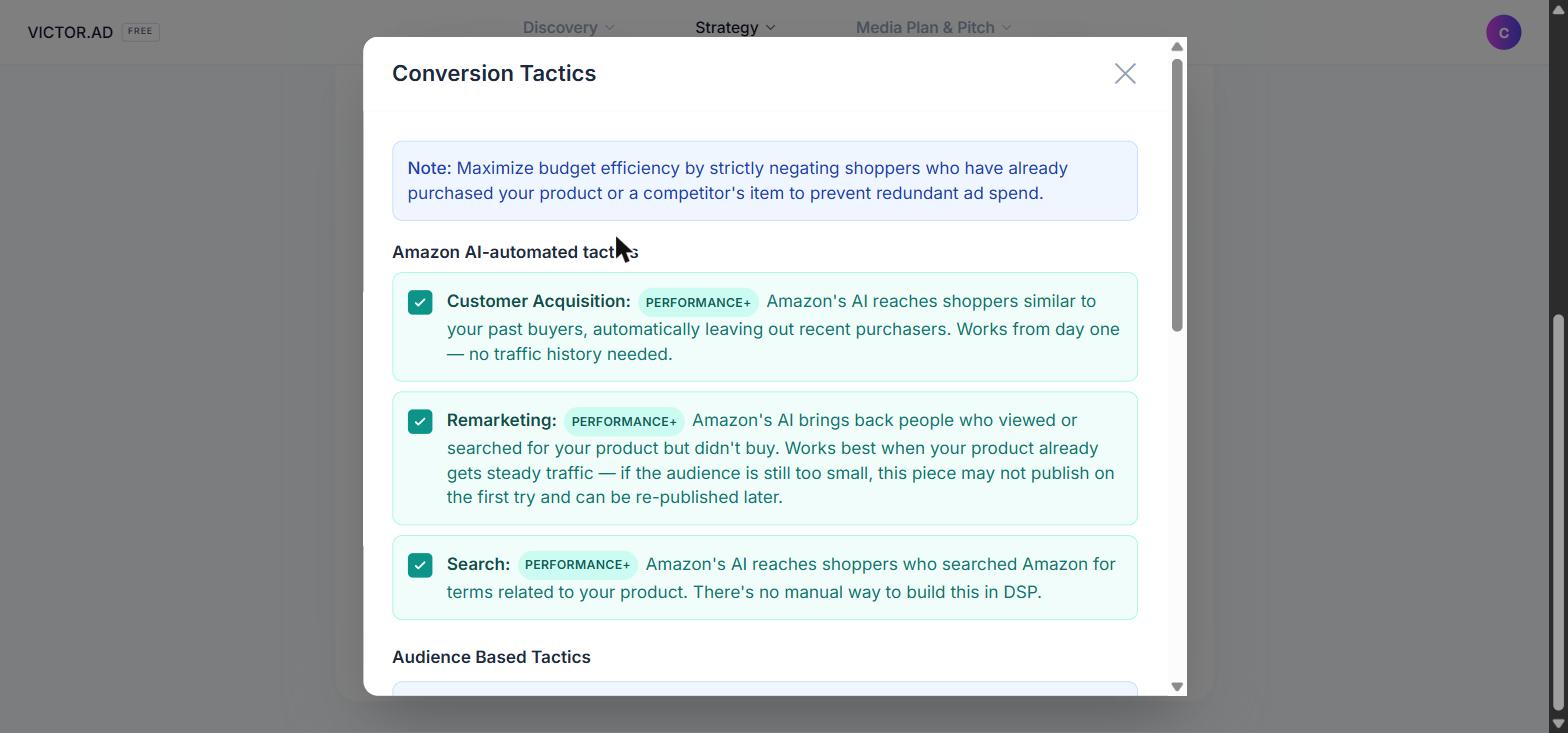
Open the Tactic modal on the Conversion goal and, because this is an Amazon product, you get Amazon's own automated option, Performance+. Instead of you setting each rule, Amazon's algorithm decides who to bid on and how much. Turn it off when you want to hold the controls yourself. There is a matching one for awareness goals, Brand+.
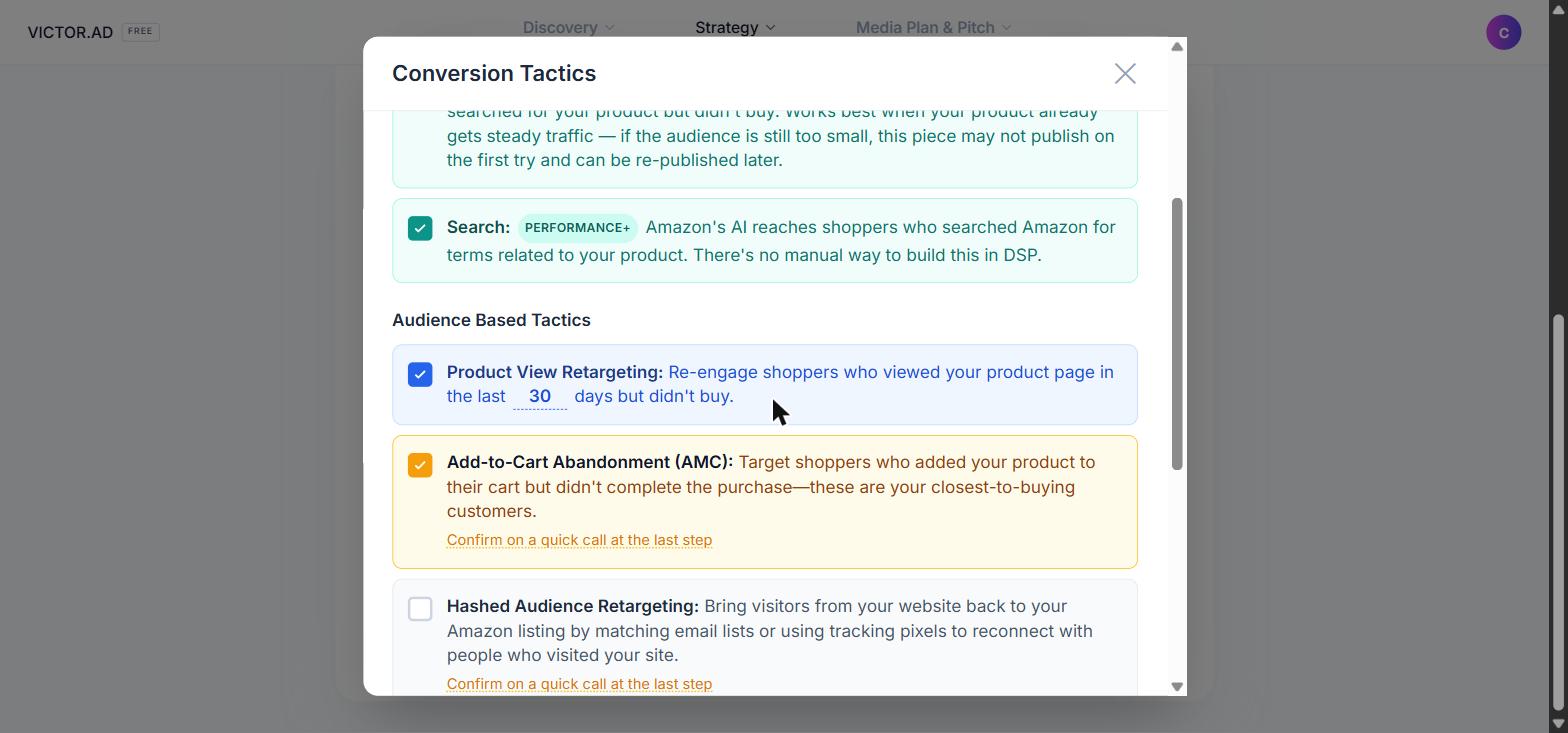
The familiar tactics are underneath: reach people who viewed the product in the last thirty days and did not buy, reach people who look like your existing customers, or return to past buyers who are about due to buy again. That thirty days is not fixed. It is editable, right there in the sentence, so if your product has a longer buying cycle you change it to sixty or ninety.
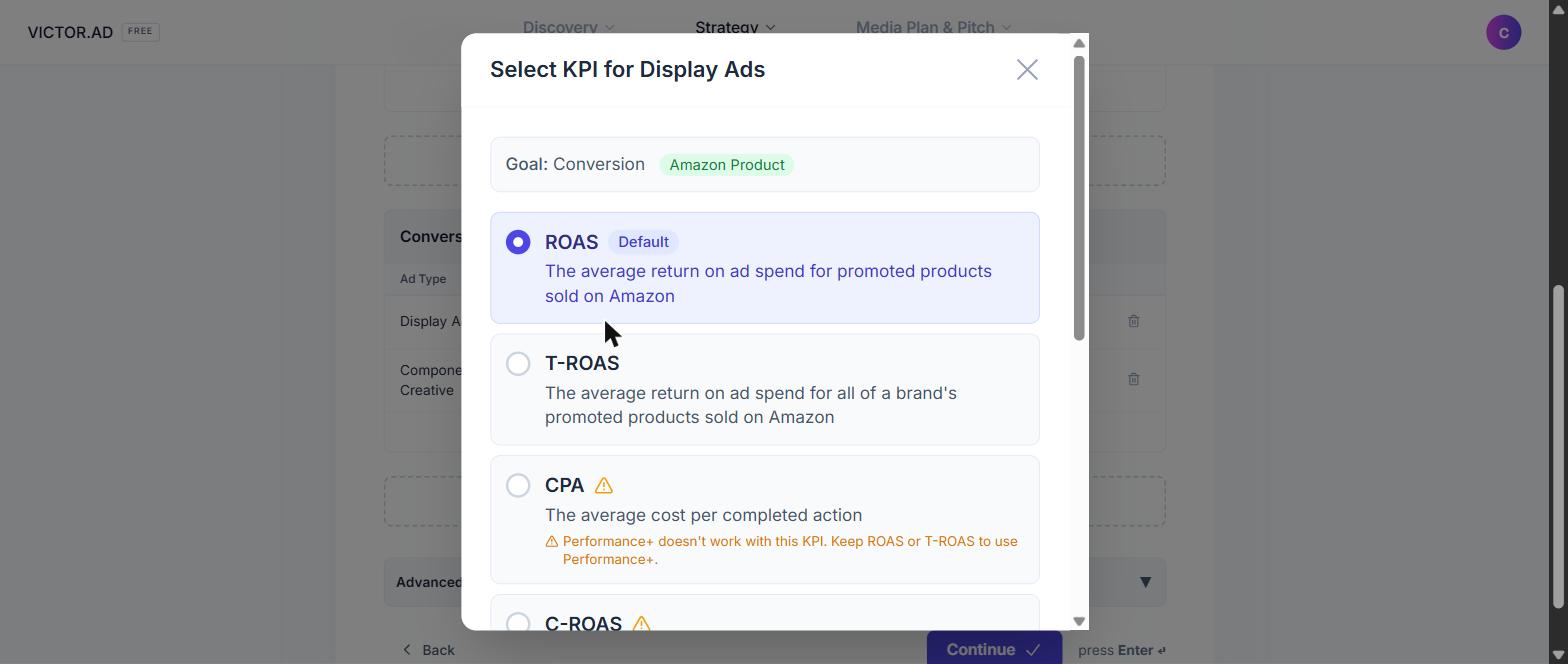
Every ad type has a KPI on it, set to something that ad type can actually measure. Audio has no click, so it measures reach. Video measures whether people watched it through, or went on to the product page. Display can measure clicks, or return on ad spend. You can change any of them. One thing to know first: a few KPIs are incompatible with Performance+, and if you pick one, the tool tells you it is switching Performance+ off. It still lets you do it. It just does not let you do it by accident.
As you edit a share, the others move to keep the total at a hundred, so most of the time you do not do that arithmetic. It only stops you when the fix is a decision rather than a calculation. Add a goal when you are already at a hundred percent and the button locks until you decide where that budget comes from. Anywhere in the tool, when a button greys out, its label tells you why.
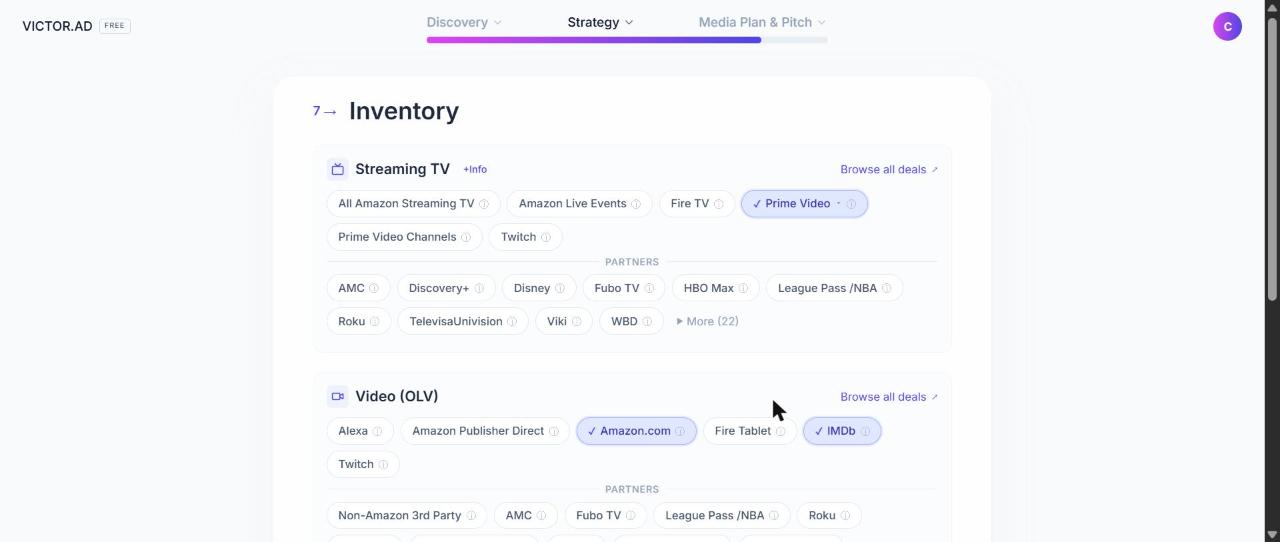
And where the ads actually run. Every format arrives with publishers already selected, Amazon's own inventory and partner inventory, taking any platform you named in the brief first and going on the product and budget after that. Everything on this screen is filtered to the country you are targeting, so whatever you can see here you can buy.
Accept it as it stands and you never have to learn the difference between basic inventory and a deal. When the client has asked for something specific, that is when you go in. Click any chip to take basic inventory only, take all the deals, or go down into individual deals by genre. Browse all deals opens the full list with each one's CPM and dates.
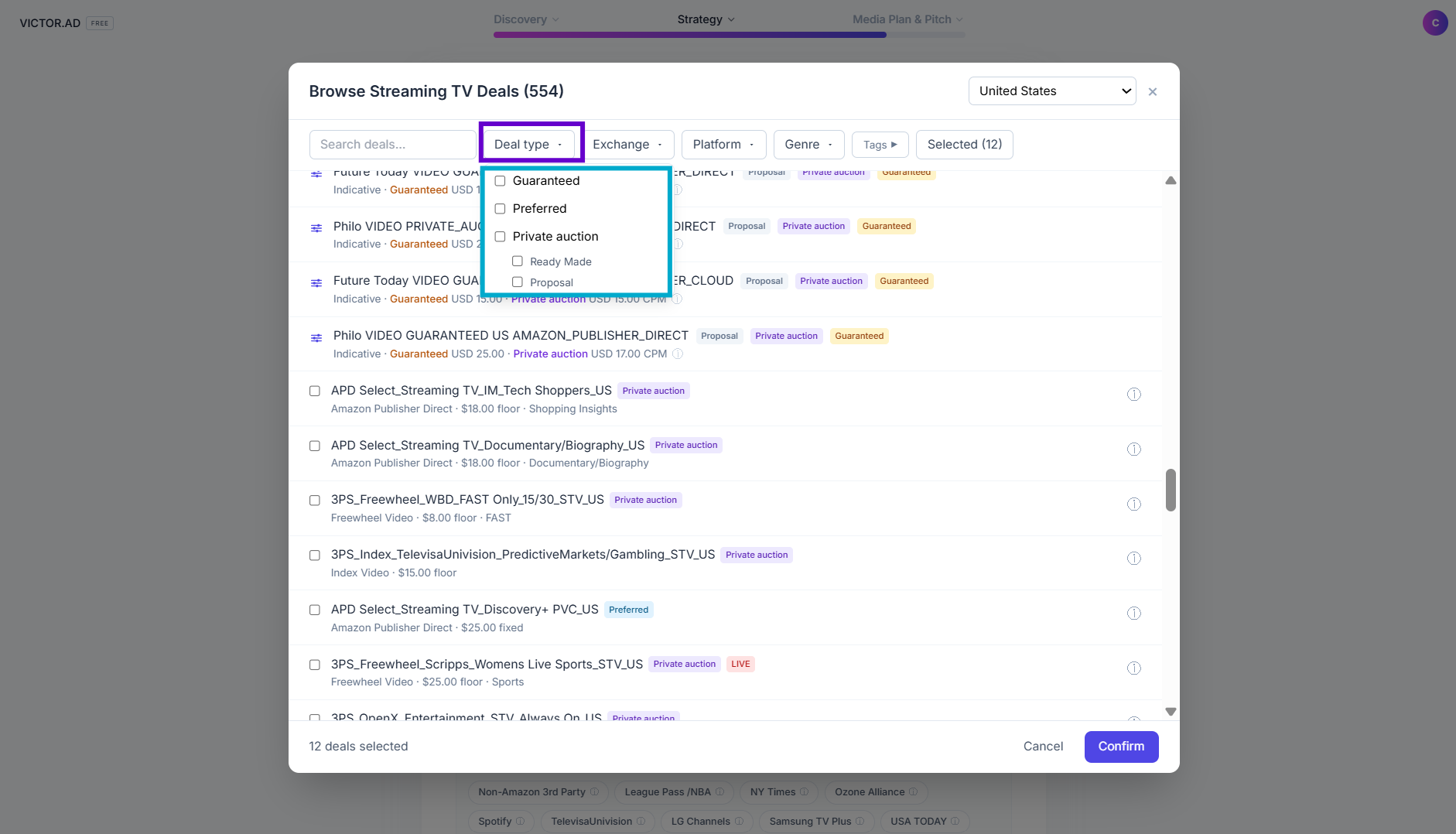
Advanced users filter that list by deal type. Private auction is the everyday kind, Preferred gives you a fixed price without a commitment, and Programmatic Guaranteed locks both the price and the volume. The Ready Made boxes are deals you can take right now; Proposal marks the ones we request from the publisher for you.
The rest of the bar works the same way. Exchange narrows the list by who supplies the inventory, Platform by the streaming service the ads run on, and Genre by the content itself. Tags cuts across genres with themes like sport, lifestyle or shopping behaviour. Selected shows only what you have picked so far, so you can review before you confirm, and the country menu at the top switches the whole list to another market in your plan.
Chapter 4
The plan and the deck
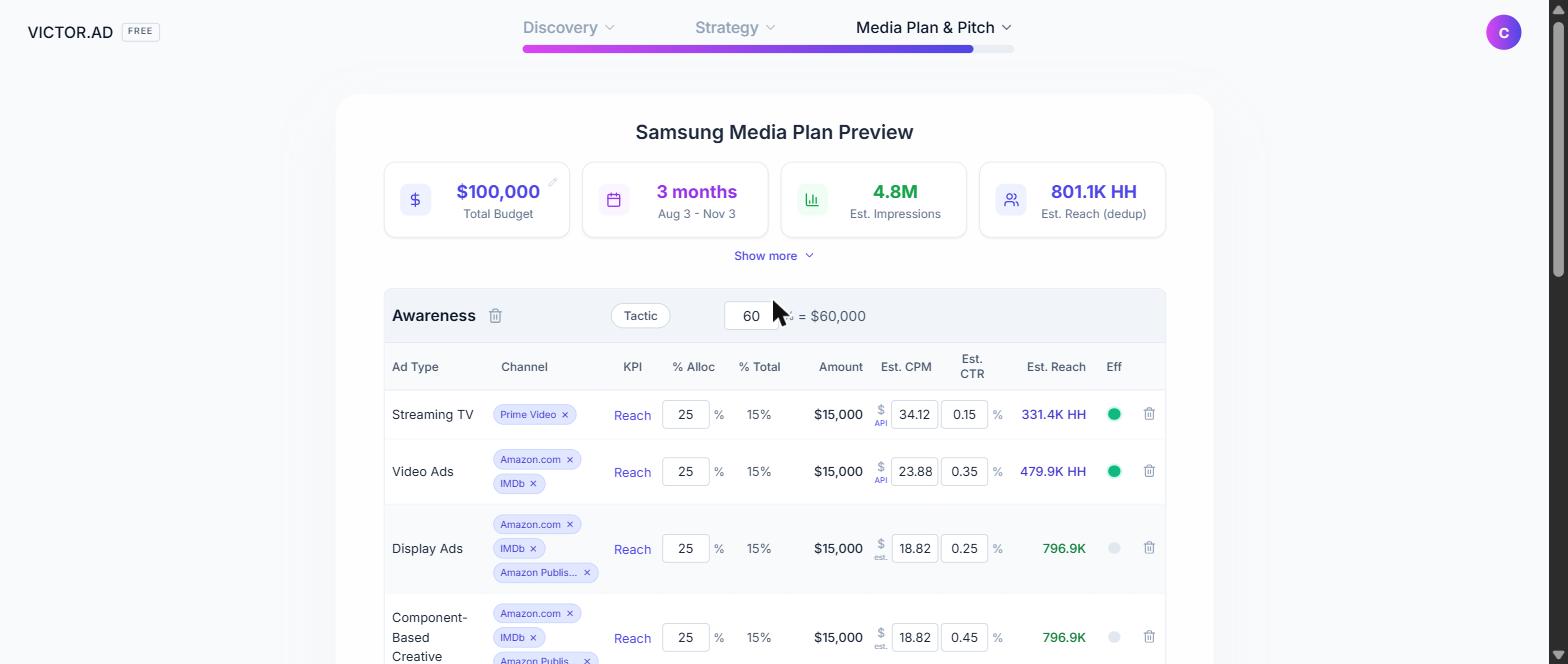
The whole plan sits on one page, and all of it is editable. Click a CPM and type over it, remove a channel, delete a goal. Continue saves as it advances, so there is no Save button.
Look at each CPM, and read two things. The colour of the currency symbol tells you how firm the number is; the small tag under it tells you where it came from. A blue symbol with no tag is Amazon's own reach forecast — the market rate for that inventory. Green is a fixed contracted deal price, the exact CPM you'll pay. Amber is an estimate, and the tag says which kind: a deal floor (a minimum that can settle higher), an always-on Amazon O&O rate, or a Mix of always-on and a deal in the same row. Grey is a rate-card fallback, or a value you typed yourself (Set). Blue and green are Amazon's own figures, worth quoting as Amazon's in the room; amber and grey are good planning approximations, not quotes. The little ? by the CPM header spells all this out.
In the Channel column, Amazon's own inventory shows as grey chips and partner inventory as blue, so the Amazon-to-partner split reads at a glance.
Show more reveals the frequency cap and the agency fee, which defaults to fifteen percent and comes out of each campaign's budget. Set it before you publish. It cannot be changed once an ad group is live in Amazon DSP.
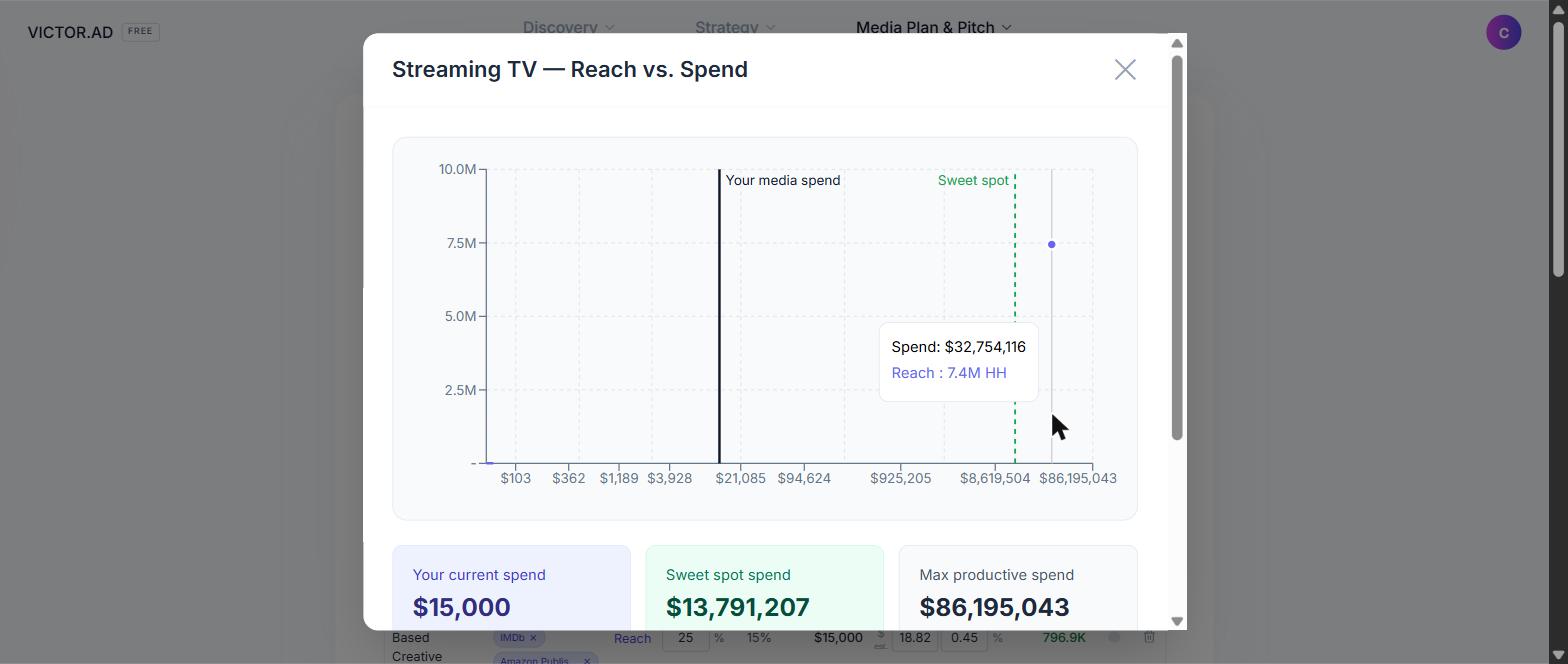
Click any reach figure and you get the saturation curve. The line is what your reach would be at every budget level. The dot is where this plan sits today. Early on the line climbs steeply, and that is money buying people who have not seen the ad yet. Further along it flattens, and that is money showing the same ad to the same people again. The sweet spot is marked, and that is your answer when a client asks whether putting more behind this makes sense.
The coloured dot in the Eff column is the short version: green is efficient, amber is approaching saturation, red is diminishing returns. All of it is Amazon's forecast at standard rate card CPMs, so real campaigns land a little either side.
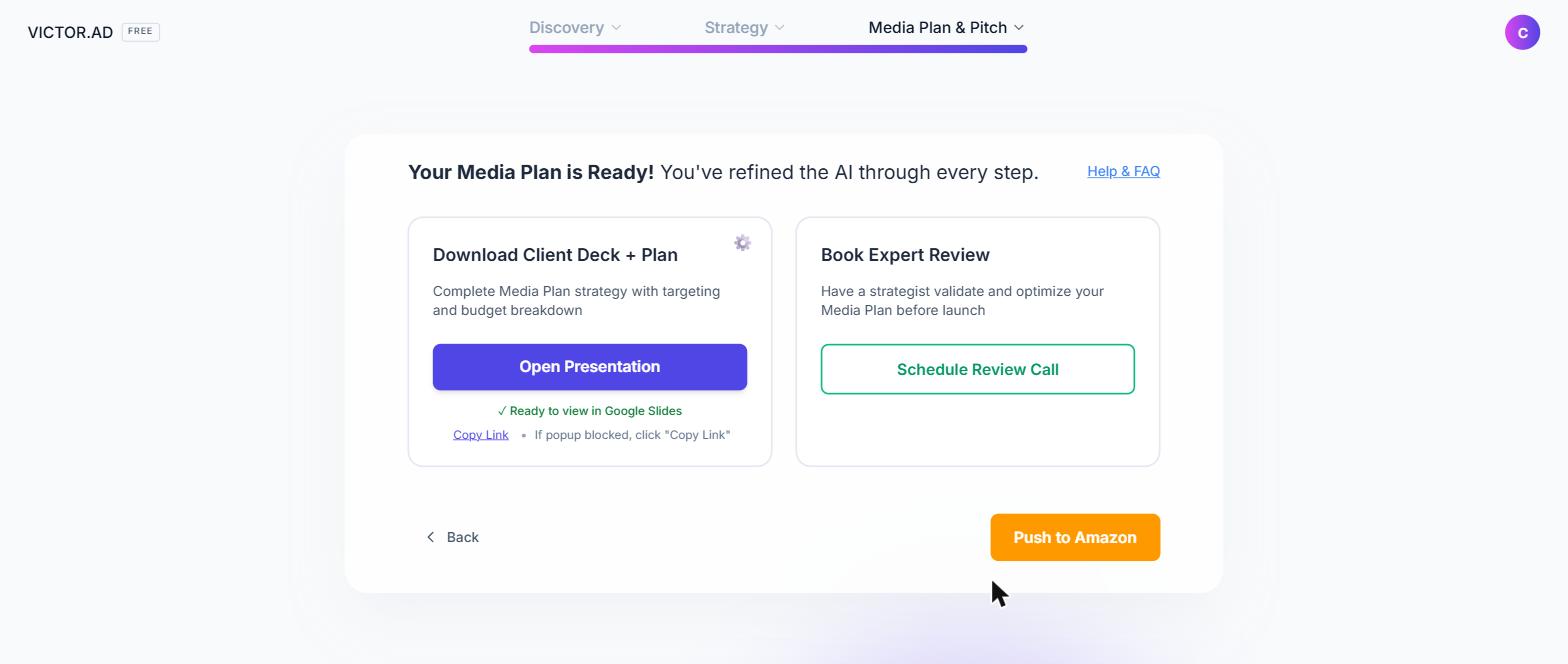
Then the deck, generating from the moment you land on the step. Product, objectives, geography, budget, timeline, allocation, audiences, creative strategy, executive summary, next steps. Copy Link shares it, and the File menu in Slides gives you PDF or PowerPoint. Change the plan and it rebuilds.
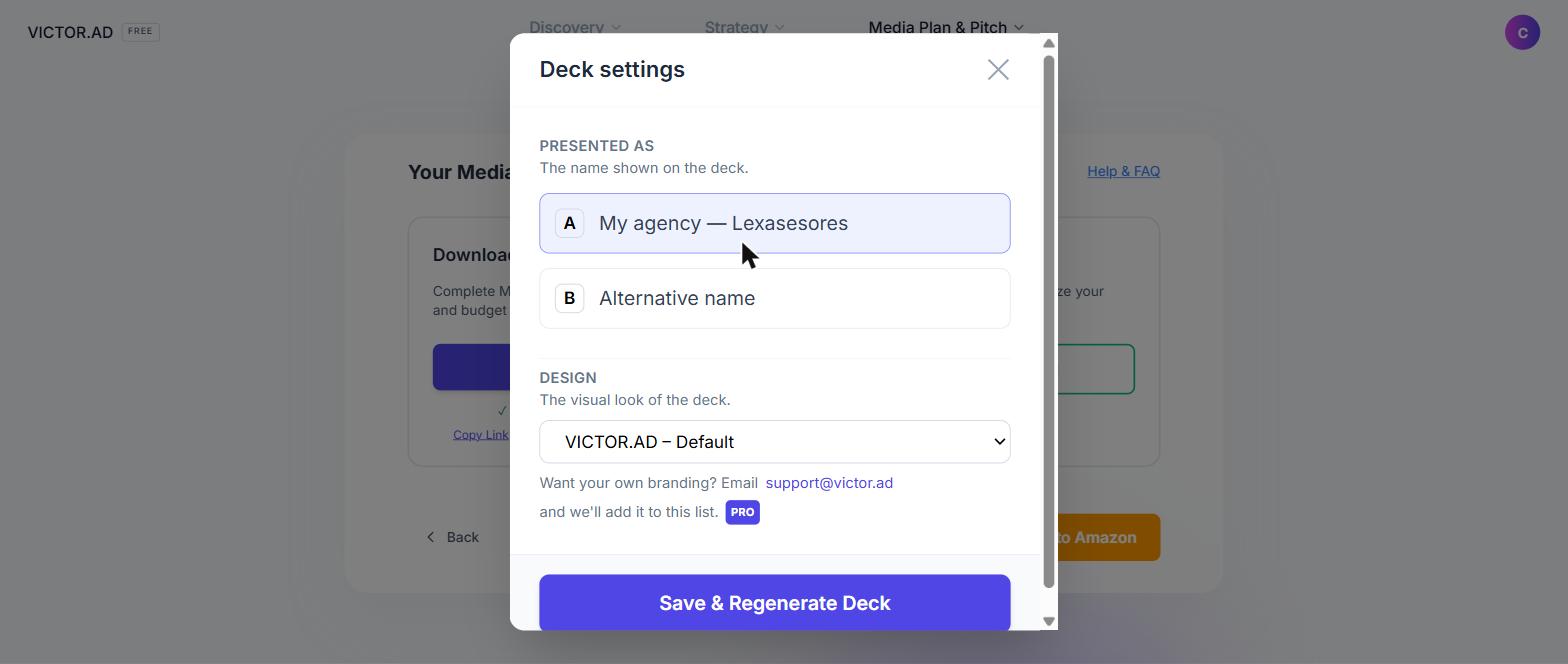
The gear on the deck card is easy to miss and worth finding. It sets whose name goes on the cover, your agency or anything you type, and which visual style the deck uses. Save and the cover rebuilds.
Book Expert Review puts a strategist on the plan before it goes live, and your notes go with the booking. And if you have not signed up yet, Push to Amazon offers a free test seat instead: a real DSP account where nothing delivers and nothing gets spent, so you can rehearse the push safely.
Chapter 5
Into Amazon
This part is optional, and it is the one place the tool writes into a real ad account, so it asks more questions than anything else. It needs a signed up account and a connected Amazon Ads account. A paid plan is not required: the free DSP test seat can push too, a real DSP account where nothing delivers and nothing gets spent, so you can rehearse it safely.
Start by connecting Amazon Ads. It lives in Workspace Settings, under the Amazon Ads tab (/workspace/settings/amazon). This runs once for the whole team: an admin connects the agency's Amazon Ads account, and after that anyone on the team can push approved plans. Only admins can connect or disconnect.
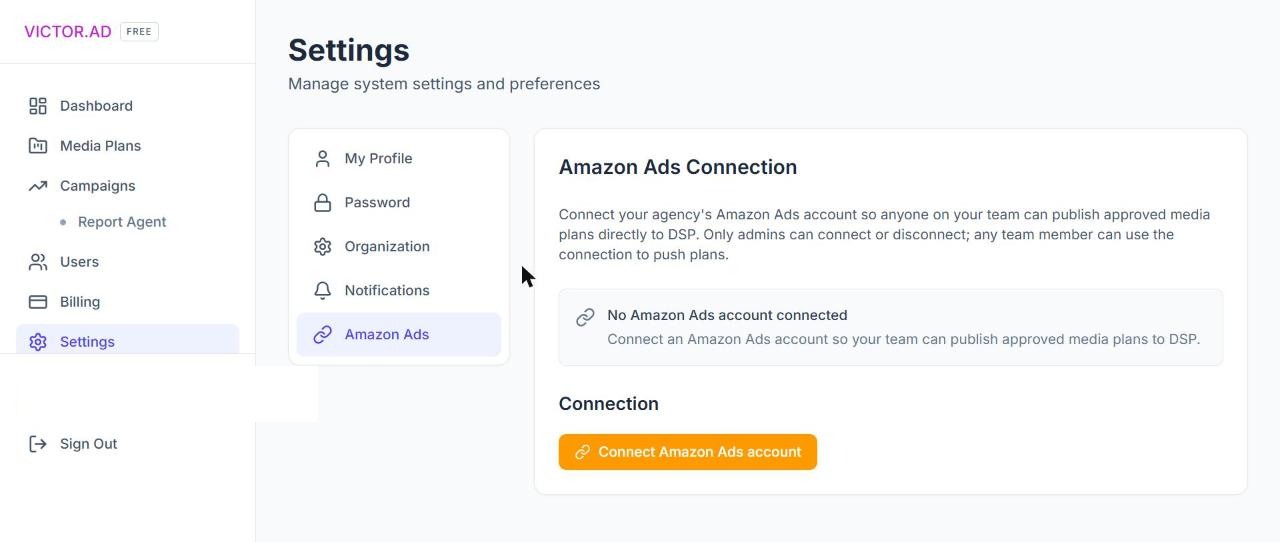
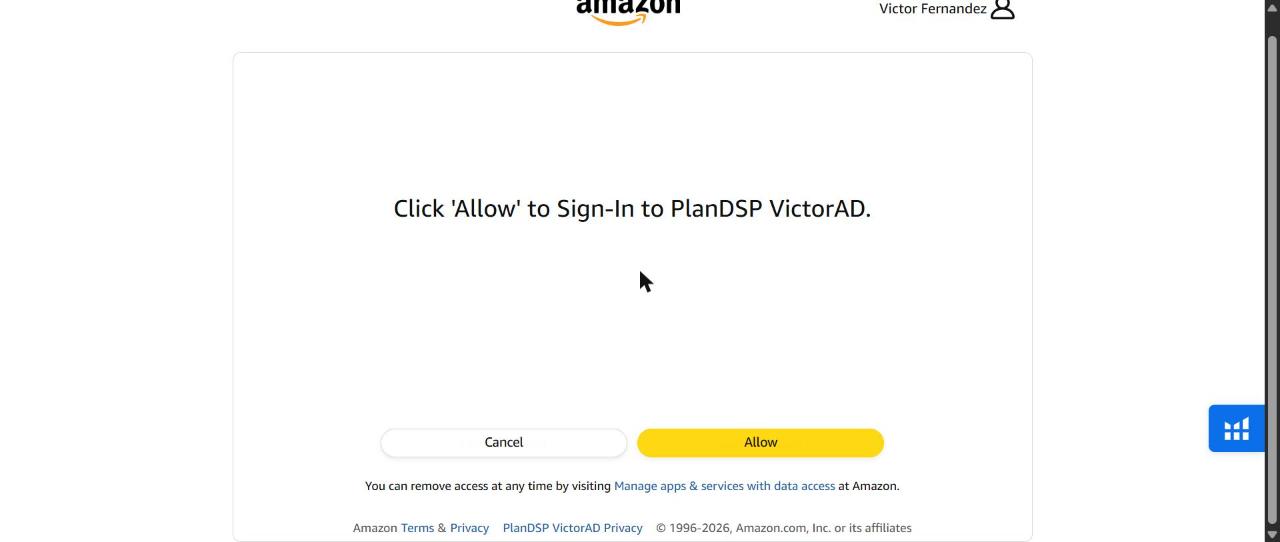
Connect Amazon Ads account sends you to Amazon to sign in and approve access. You approve it on Amazon's own screen, not inside the tool, and Amazon lists exactly what it is granting. Approve, and you land back on this tab with the connection active.
Back on the tab, the tool finds every DSP advertiser your account can reach and lists them under Manage advertisers. That list is the gate: whatever is ticked there is what your team can publish to, nothing else. Tick a whole account and every advertiser inside it stays available, including ones Amazon adds later. Tick a single advertiser and only that one shows up. The choices survive reconnects.
On a free test seat, the connection starts from an Amazon invitation instead, sent to the email on your VICTOR.AD account. If your Amazon Ads login uses a different email, the banner on this tab can resend the invitation to that address, so there is no back and forth over email. And if Amazon says it does not recognize the invitation, that Amazon account has not accepted the Advertising Agreement yet. The fix is a button on the same banner: open the agreement, accept it, then follow the invitation link again. Seats are built by hand, so allow up to forty eight hours for yours to arrive.
With the connection made once, the rest happens on the plan itself. Open it on the Media Plans page. If anything is incomplete, it is listed here first, each item with a link straight to the screen that needs it, usually a flight starting in the past or a last minute change that needs confirming. Clear those before you go on. Nothing is live at this point.
Next, pick the advertiser the plan will publish to. The tool recommends the ones registered in the same country and currency as the plan and keeps the mismatches behind a toggle. This comes before you mark the plan ready, not after: the Mark ready button stays locked until an advertiser is chosen.
Now mark the plan ready. Custom audiences, creatives and conversion tracking are optional at this point, add them now or later in Amazon DSP. If you build the custom audiences here, each one warms up in the background over a few minutes, moving from building to ready, and you do not have to wait on this screen. Marking ready spends nothing and puts nothing live. It moves the plan into the push step.
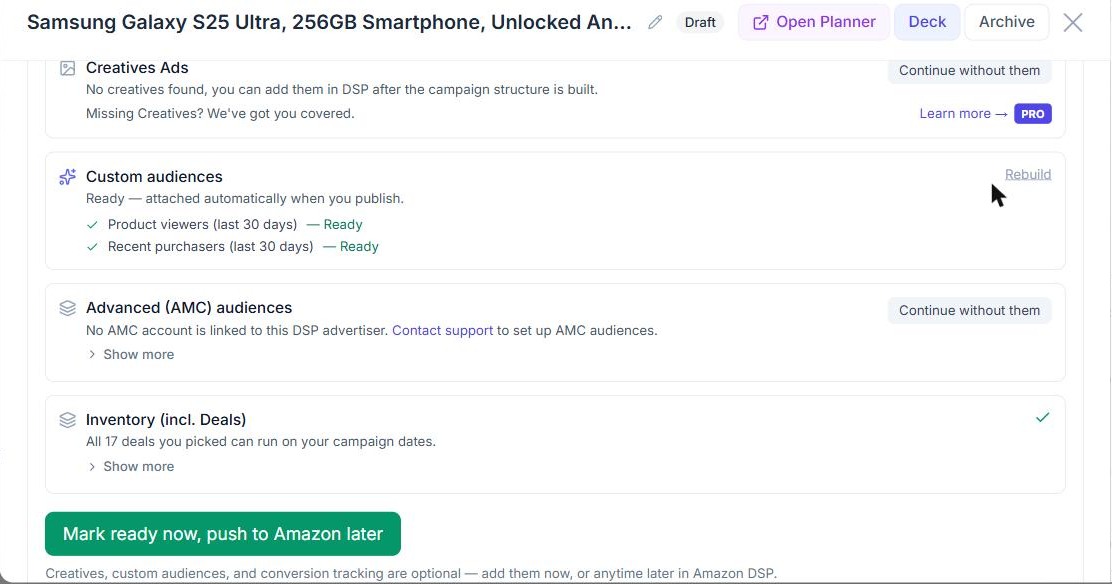
Before the push, the tool shows a recap: what is ready, and the exact name of every campaign and ad group about to be created. The advertiser you picked is already selected, with a Change advertiser link if you need it.
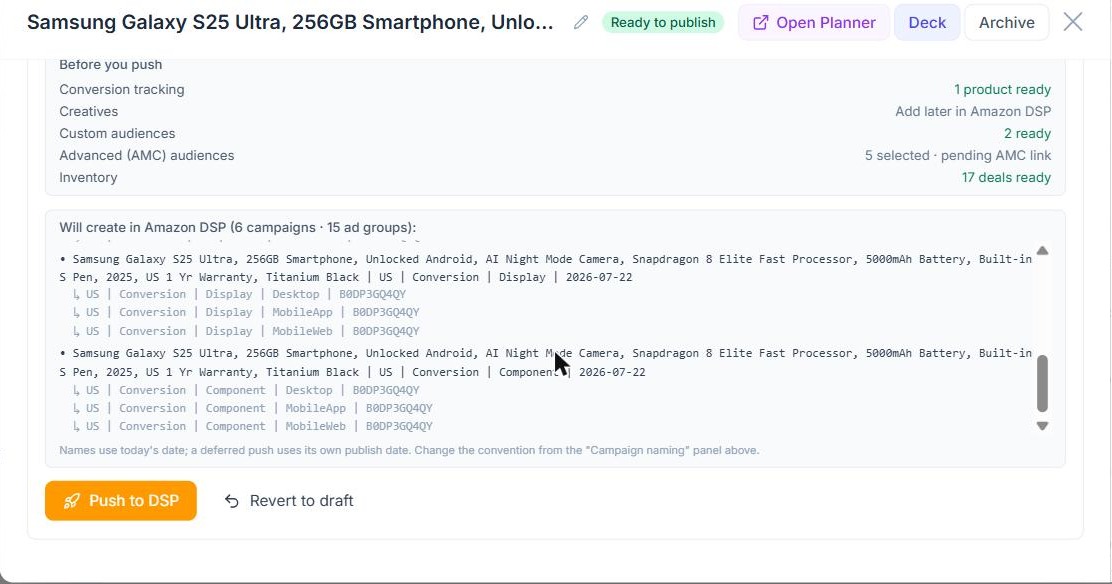
The push takes about five minutes. It creates a campaign per goal and ad format combination, with the ad groups and targeting underneath, plus your custom audiences and conversion tracking where they are staged. Every campaign gets a link into the Amazon DSP interface, and from there Amazon owns it: pacing, edits and pausing all happen there.
One limitation to know first
The push only creates. It cannot update or replace campaigns that already exist. Change the plan, push again, and you get a fresh set alongside the old one. The tool warns you before you confirm.
The plan is yours at every step. It proposes, you decide, and nothing reaches Amazon until you send it.
Build one on your own product
The fastest way to trust the plan is to watch it build itself. One product link, your brief, about fifteen minutes. No signup.